How to automate posting to Discord using an Axiom.ai automation
Discord is a popular communication platform that allows for real-time interactions. It's often used amongst friends to join in activities such as gaming, but can also be used as a resource hub to provide updates and customer services to users of a specific service. You can easily use your Axiom.ai automations to post new content to your Discord servers.
Note, webhooks are only available within channels inside of Discord servers.
# Getting started
To send data to Discord, you'll need the following:
- Server - You'll need to have a server set up.
- Channel - You'll need to have a channel set up.
- A webhook URL - In the sidebar, hit the 'cog' beside the channel name, then head into "Integrations", then "Webhooks", click "Create Webhook", open the newly created webhook and click "Copy Webhook URL". Save this for later use.
If you have any issues obtaining the webhook URL from Discord, contact Discord support (opens new window).
# Post a Discord message with an Axiom.ai automation
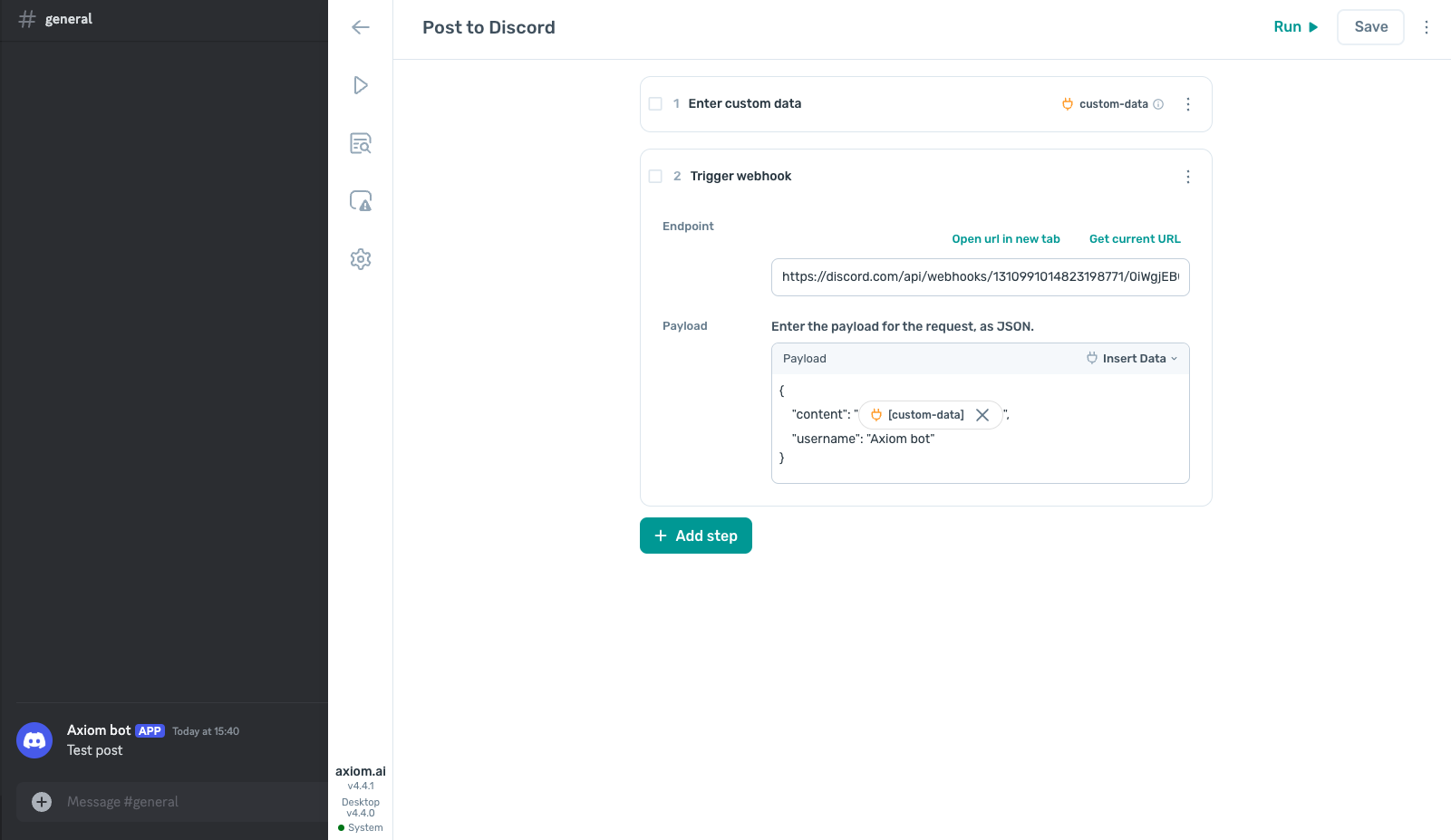
To send a message to a channel within your Discord server, you'll need to use the Trigger webhook step. You'll need the webhook URL from Discord detailed in the getting started section.
The payload that Discord is expecting can be found below and can be modified to your requirements:
{
    "content": "<YOUR_MESSAGE>",
    "username": "Axiom bot",
    "avatar_url": "<URL>"
}
Let's break down each part of that payload:
- content - this is your message contents that will be posted to the channel. You can insert text manually, or use the "Insert data" option to insert a data token. Learn more with our passing data between steps tutorial.
- username - this is optional, give a name to the bot posting your message.
- avatar_url - this is optional, display an avatar for the bot posting your message.
Hit "Save" once you are happy with your automation. Below you will find an example of this in action, we've omitted the avatar_url in this instance and used the [custom-data] data token to pass a custom message into the webhook.
# Testing your workflow
Once you have your automation saved, click "Run" within the Axiom.ai extension to get started. If successful, you should see a message appear in your Discord channel within a few seconds. If this is not successful, review any errors that appear in the builder, or within your Run reports. See common errors for details on common errors and how to resolve them.
# Wrapping up
Powering up your teams messaging using Discord and Axiom.ai can be help to keep your content fresh - from automating posting using content that has been stored in a Google Sheet, to content that was automatically generated using our Generate text with ChatGPT step, the possibilities are endless.
As with all API based tools, it's worth noting the rate limits (opens new window) that Discord applies to their webhooks - if you are having issues with messages not posting correctly, this is often the first culprit.
Testing was completed on 26 Nov 2024, features in Discord or Axiom.ai may change from time to time and updates may need to be made.