How to use Google Apps Script to trigger an automation
To send a POST request to your automation using Google Apps Script, follow the steps below. First, ensure that you have the API endpoint and the necessary API key. This guide walks you through a basic example of how you can structure your Google Apps Script to send a POST request, fetching all the data from an active Google Sheet. We also have a no-code integration with Google Sheets that can be used to fetch, write, and edit Google Sheets data.
# Getting started
To get started, you will need the following from the Axiom.ai Chrome extension:
- API key - The API key is found on the dashboard.
- Automation name - Get the name of the automation you wish to trigger.
- Endpoint - The current endpoint is
https://lar.axiom.ai/api/v3/trigger.
# Trigger an Axiom.ai automation using Google App Scripts
Learn how to get started with triggering your Axiom.ai automation with a Google App Script.
# Set your Axiom.ai automation
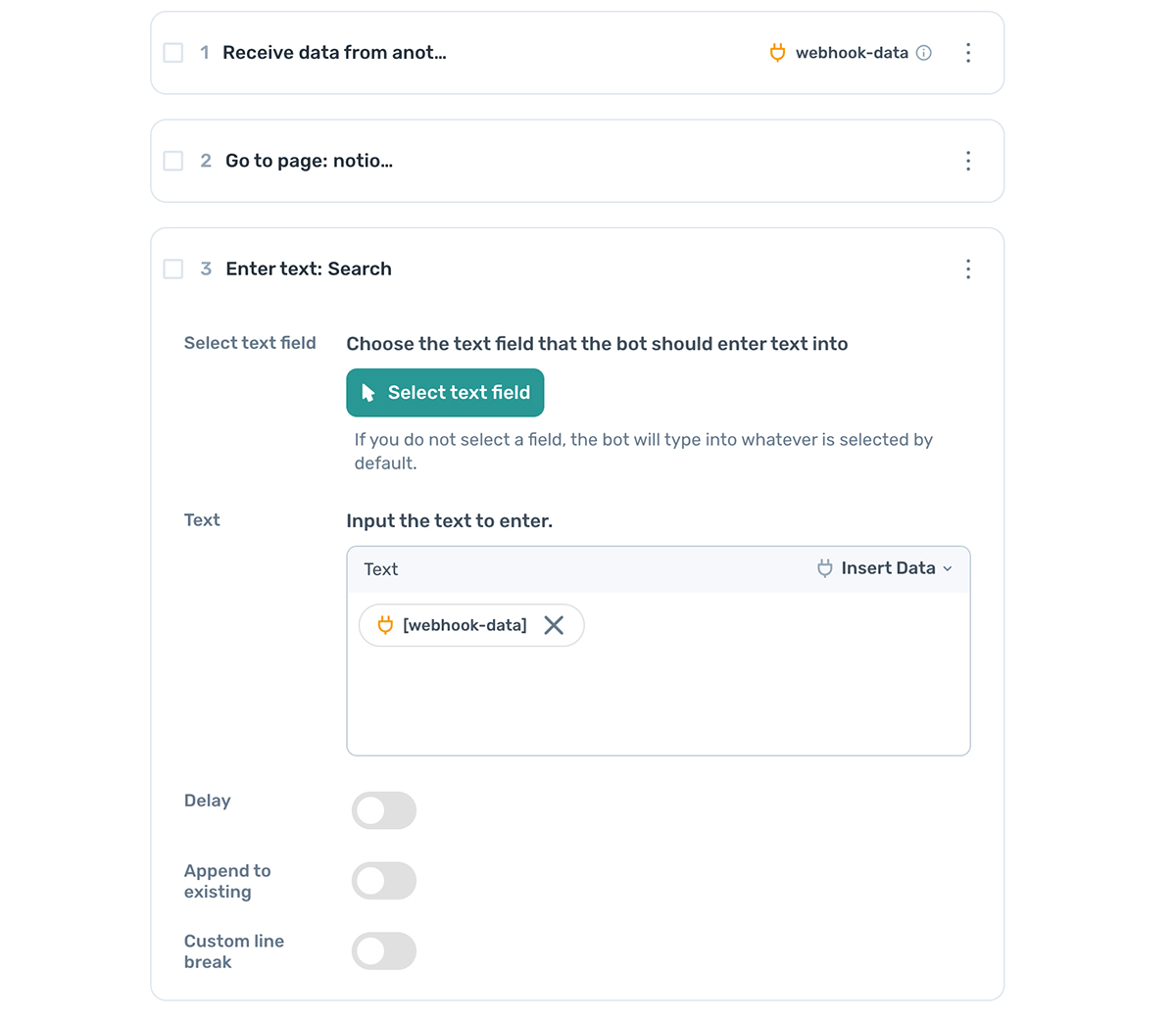
In this basic example, we will trigger the automation from a Google Apps Script, passing the data into our automation from the active Google Sheet. The automation will then open up Google Search and pass the data into the search field. Replicate the design pattern below in the builder.
- Receive data from another app
- Go to page - Insert the Google search URL
- Enter text - Select the search field, then click insert data and select webhook-data to pass data from the sheet, select column 'A' in the data preview.
# Create an API call using Google Apps Script
First, create a new Google Sheet by entering 'Sheet.new' into a blank browser tab.
- Create a new Google Sheet, add some text into column A.
- Click on Extensions > Apps Script to open the Apps Script window.
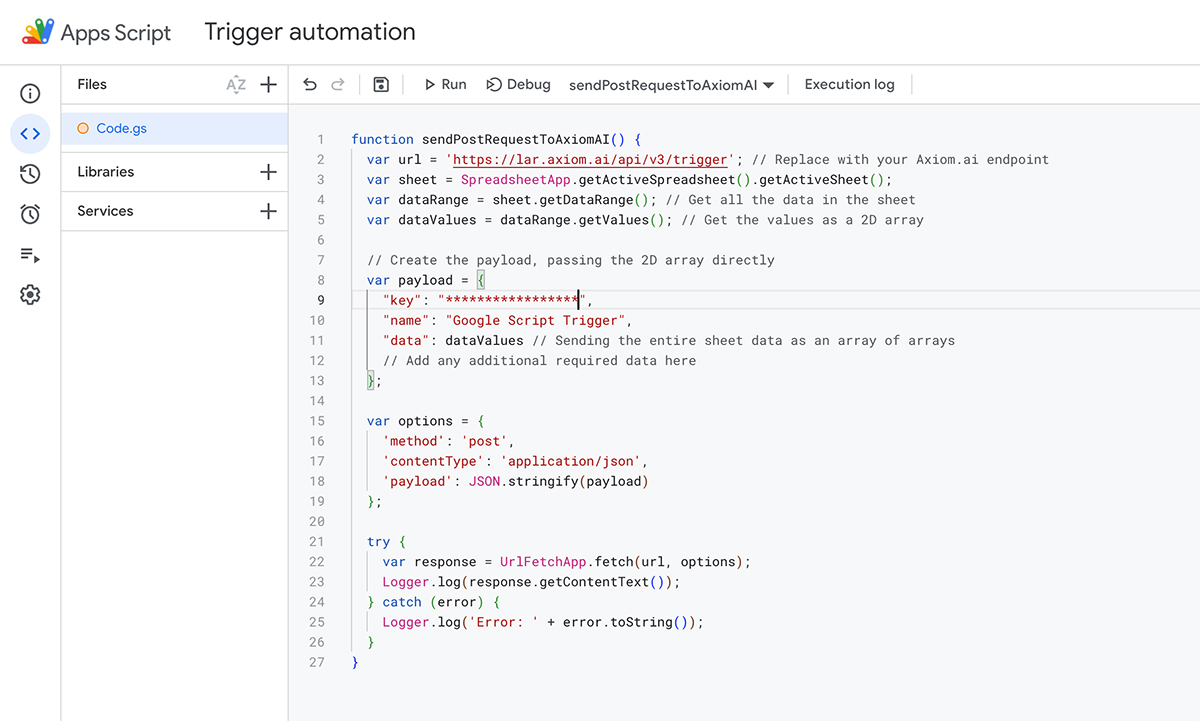
- Copy the code example from this page into the Apps Script window.
- Insert your API key in the input noted with "insert key here".
- Insert the name of the automation you wish to trigger where the text says "insert automation name here".
function sendDataToAxiomAi() {
  var url = 'https://lar.axiom.ai/api/v3/trigger'; // Replace with your Axiom.ai endpoint
  var sheet = SpreadsheetApp.getActiveSpreadsheet().getActiveSheet();
  var dataRange = sheet.getDataRange(); // Get all the data in the sheet
  var dataValues = dataRange.getValues(); // Get the values as a 2D array

  // Create the payload, passing the 2D array directly
  var payload = {
    "key": "Insert key here",
    "name": "Insert automation name here",
    "data": dataValues // Sending the entire sheet data as an array of arrays
  };

  var options = {
    'method': 'post',
    'contentType': 'application/json',
    'payload': JSON.stringify(payload)
  };

  try {
    var response = UrlFetchApp.fetch(url, options);
    Logger.log(response.getContentText());
  } catch (error) {
    Logger.log('Error: ' + error.toString());
  }
}
# Trigger based on edits to your sheet
Google Apps Script offers event-driven triggers that can be set up to end data to your Axiom.ai automation.
- Click "Triggers" in the Google Apps Script sidebar.
- Click "Add Trigger" to create a new trigger.
- Set the function to run to
sendDataToAxiomAiand the event type to "On edit". - Click "Save".
This will send all the sheet data when a cell is changed - you may wish to add additional filters to your code to filter based on specific criteria.
# Testing your workflow
In Google Apps Script, click save and run your automation. If the API POST call works, Axiom.ai will return a link you can access to view the run. If not, follow the error messages and fix any issues.
- Click the 'disc' icon to save your API call script.
- Click on the 'play' icon to start your script.

# Wrapping up
Using Axiom.ai, it's simple to trigger automations and pass data into your bots. In this example, we learned how to use Google Apps Script, but the same principles can be applied to using any webhook or web API to start your bot runs.