How to combine Tokens (variables) into one
When creating bots in axiom.ai, you will often pass data between steps, perhaps to filter it or enter it into an input field. You may wish to combine variables (tokens) from different steps (data sources) into a single variable.
As ever, there is more than one way! That's why axiom.ai is so powerful.
# What are tokens in axiom.ai?
Tokens (variables) are pieces of data created at each step as your automation runs. Certain steps can output values such as text, numbers, or lists, which you can reuse in later steps. Tokens let you pass data between steps to output, manipulate, or transform.
# Method one: the Append or merge data step
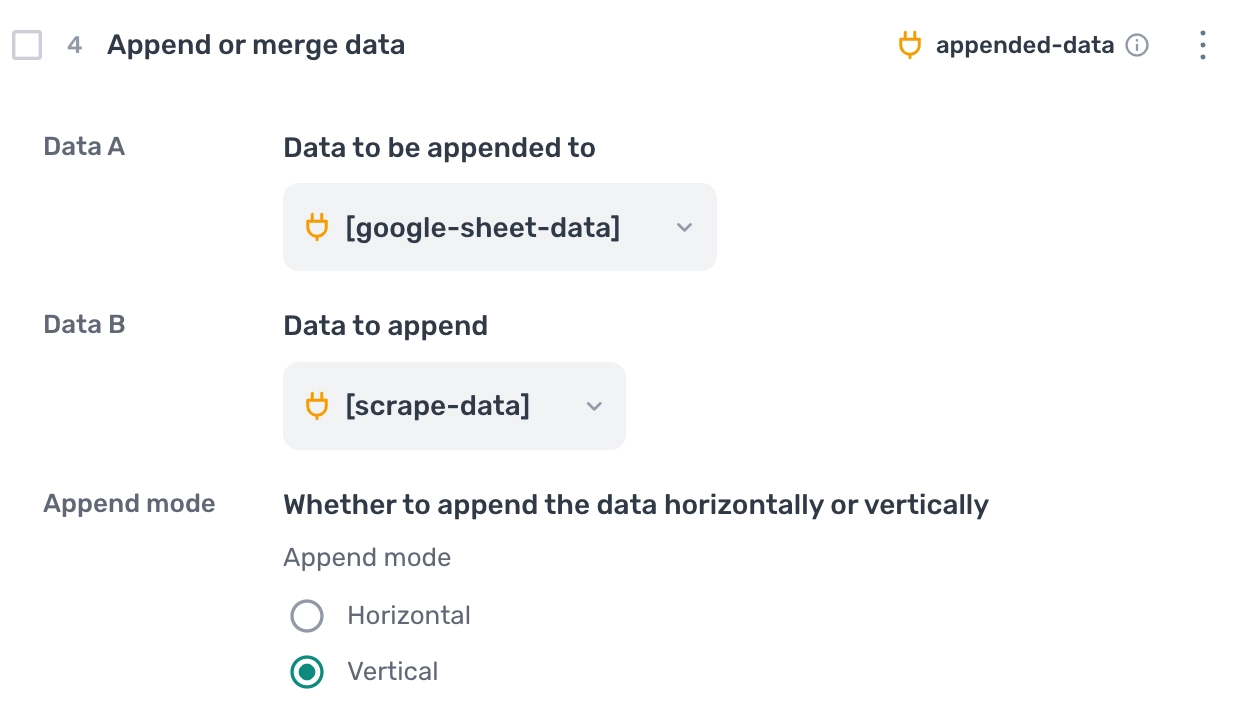
The Append or merge data step allows you to select two data sources and combine them into a single output. This is by far the simplest, no-brainer method for joining data in Axiom.
# How to use the Append or merge data step
- Step 1.0
Append or merge data- Data A — Select the first data set (e.g., a scraped ticket URL).
- Data B — Select the second data set to combine (e.g., ChatGPT output or a timestamp).
- Append mode — Choose how to combine the data:
"Horizontally"joins values side-by-side"Vertically"stacks values top-to-bottom
# Tip
💡 You can chain multiple Append or merge data steps if you need to combine more than two values.
# Method two: The loop step
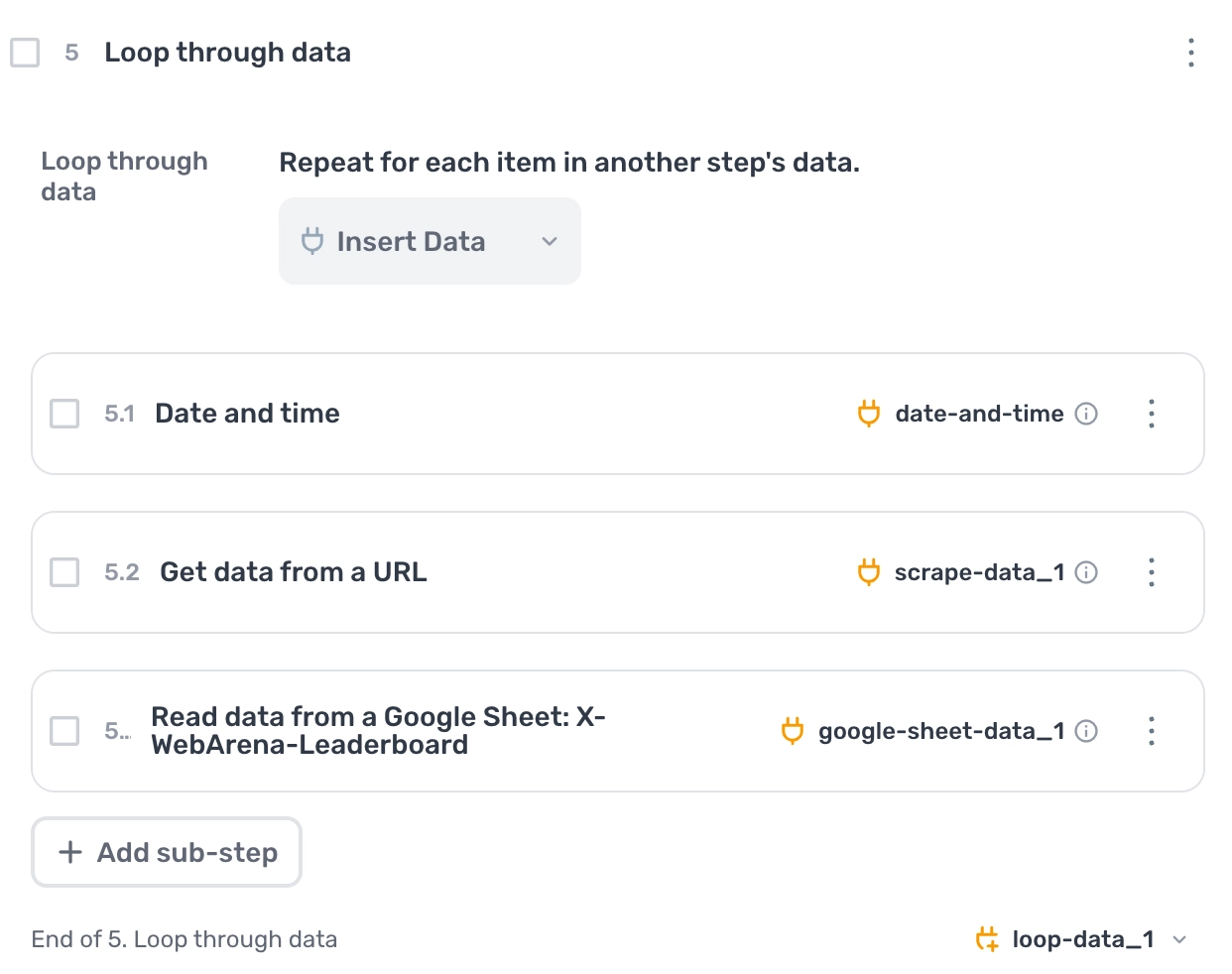
The Loop through data step is most commonly used to repeat actions—like scraping a list of URLs.
But it has a powerful hidden feature: it can be used to combine data from multiple steps even when you’re not looping.
Any steps that output data, when placed inside a Loop through data block, will have their data combined into a single output token.
# How to use this trick
Step 1.0
Loop through data- Loop through data — Leave this empty or toggle it off.
- Purpose — You are not looping; you're using the loop as a container to combine outputs.
Step 1.1
Step that outputs data- Add any step that returns data (e.g.
Get data from current page).
- Add any step that returns data (e.g.
Step 1.2
Another step that outputs data- Add another step that returns data (e.g.
Date and time).
- Add another step that returns data (e.g.
Outside the loop
- Use the token from the
Loop through datastep. - This token contains combined data from all steps inside the loop, appended horizontally.
- Use the token from the
# When to use this
This trick is useful when merging data from multiple steps to write into a Google Sheet.
# Tip
⚠️ The combined data is only available outside the loop.
# Method three: The JavaScript step
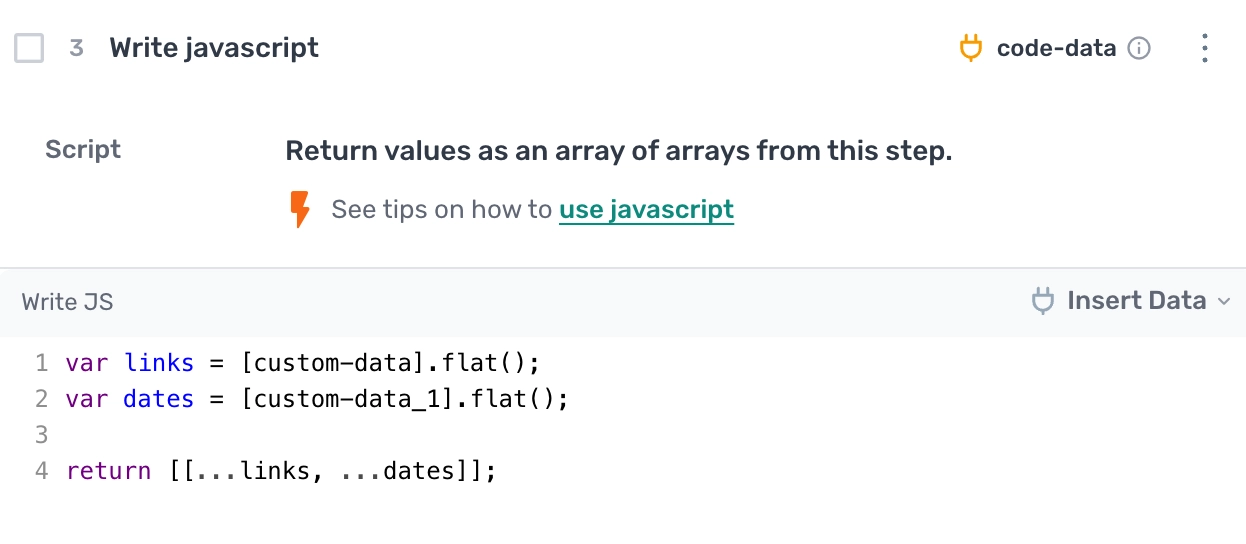
If you're comfortable with code, the JavaScript step is a powerful way to manipulate and combine data however you like.
You can use it to join variables, restructure arrays, clean data, or return a custom output—all inside one step.
# How to use it
- Step 1.0
JavaScript- Add step — Open the step finder and insert the
JavaScriptstep. - Declare tokens — Use the
Insert Datamenu to select tokens and assign them to variables. - Write your logic — Combine, transform, or filter the data however you like.
- Return output — Use
returnto output a single value or an array of values.
- Add step — Open the step finder and insert the
# Example
var links = [custom-data].flat();
var dates = [custom-data_1].flat();

return [[...links, ...dates]];
# Tip
- You can return a single value or an array.
- The result can be used as input for steps like "Write to a Google Sheet".
- You don’t need to be an expert—no-coders can still use this step with a bit of help from an LLM like ChatGPT.
# Wrapping up: axiom.ai is a flexible tool
We designed axiom.ai to be flexible, which means there is often more than one way to solve a problem.
- If you only need to combine two tokens, use the
Append or merge datastep - If you want to output multiple values into a single row, use the
Loop through datastep - If you need full control over how data is combined or transformed, use the
JavaScriptstep
We have also received feedback from users about creating a dedicated step for handling multiple variables. This is something we are actively exploring for a future release.