How to automate Jira ticket triage with AI (Updated 2026)
At Axiom.ai, as support volume grew, opening and reviewing each ticket just to check whether it belonged in our queue quickly became a bottleneck. From time to time, we’d also see requests from customers trying to reach a completely different company — tickets that were never meant for us at all.
To keep our time focused on helping customers, rather than sorting, filtering, and closing irrelevant tickets, we built this automation. In this guide, we’ll show how it works and how you can apply the same approach to your own support workflow.
This guide walks through a straightforward Axiom automation that reviews Jira tickets, classifies them, and performs actions depending on the category.
As an example, we’ll keep the classification simple: spam vs. everything else. You can extend the same pattern to classify by any other criteria which works for your team.
# Install Axiom in your Chrome browser
If you haven’t already installed Axiom or created an account, go to the Chrome Web Store and
install Axiom (opens new window).
New accounts include 2 hours of free runtime, which is enough to build and test this automation a few times.
# Set up your Google Sheet
Create a new Google Sheet and name it Triage and add two sheets within it Triage and Closed.
This sheet will be used to:
- temporarily store Jira ticket links
- log classification results
- keep a record of which tickets were processed
You don’t need to add any data manually as Axiom will populate the sheet during the run.
# Open Jira and create a new automation
- Open Chrome and log in to your Jira support portal (the page that lists incoming tickets).
- Open Axiom.
- Click + New Automation to start building from scratch.
You’ll now begin adding steps using the Step Finder.
# Let’s build the Jira ticket triage automation
This section walks through how to build the automation step by step in Axiom. Follow along below to understand exactly how each step works and how the pieces fit together.
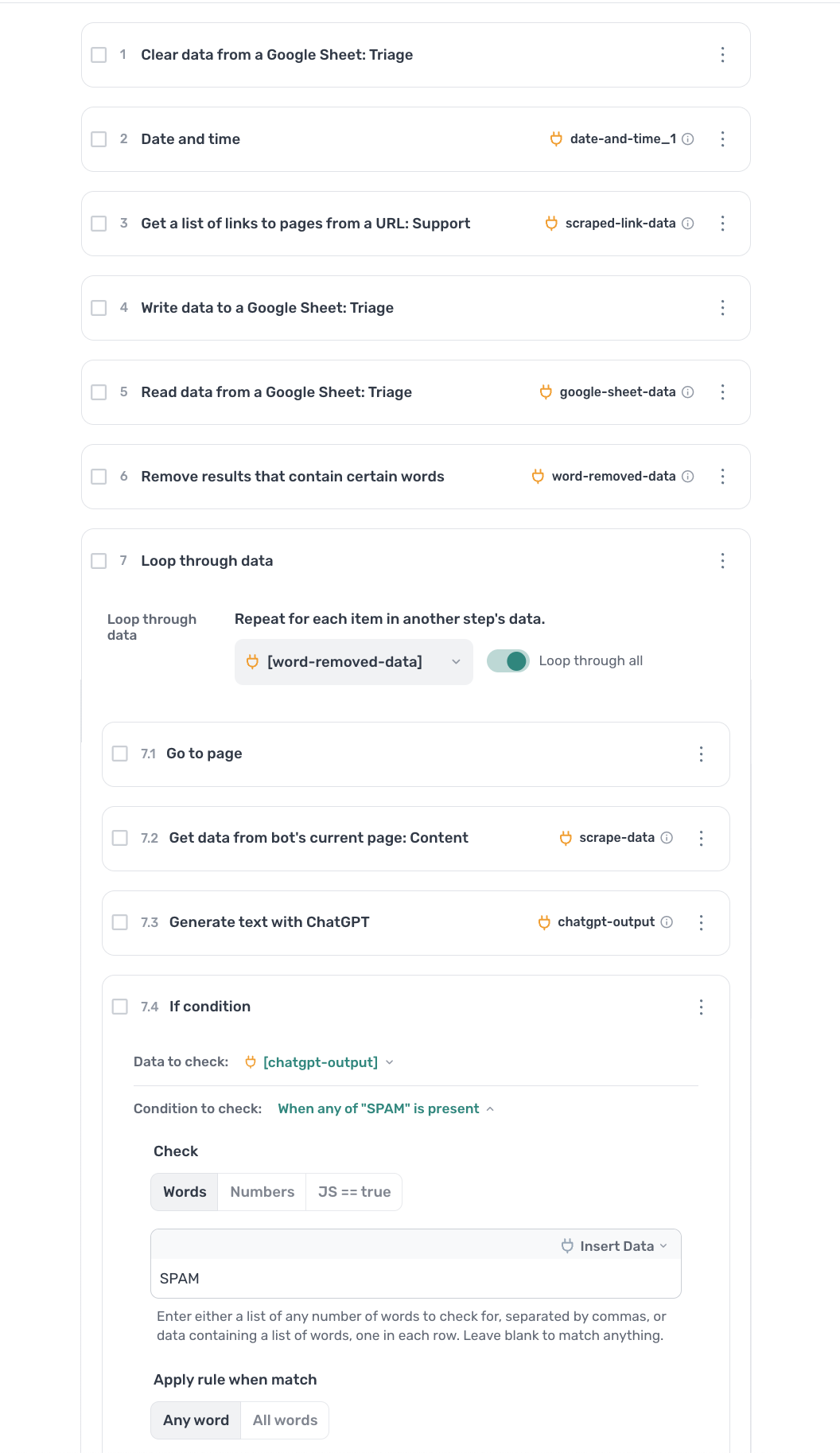
Step 1.0
Clear data from a Google Sheet- Spreadsheet — Select the
Triagesheet. - Purpose — Clears old results to ensure each run starts fresh.
- Spreadsheet — Select the
Step 2.0
Date and time- Purpose — Creates a timestamp to log when each run occurred.
Step 3.0
Get a list of links to pages from a URL- URL — Set to your internal Jira support portal page.
- Select — Point and click the column with ticket/work numbers.
- Purpose — Scrapes individual ticket links for triage.
Step 4.0
Write data to a Google Sheet- Spreadsheet — Select the
Triagesheet. - DATA — Output from step 3.0.
- Purpose — Stores ticket links for staging and review.
- Spreadsheet — Select the
Step 5.0
Read data from a Google Sheet- Spreadsheet — Select the
Triagesheet. - Purpose — Loads ticket links back into the bot to loop through.
- Spreadsheet — Select the
Step 6.0
Remove results that contain certain words- Data — Select the output from step 5.0.
- Words to match — Add terms to exclude non-ticket URLs.
- Purpose — Filters out irrelevant links.
Step 7.0
Loop through data- Data — Select the output from step 6.0.
- Loop through all — Enable this to process every ticket.
Step 7.1
Go to page- Enter URL — Insert ticket link from loop data.
- Purpose — Opens each Jira ticket one by one.
Step 7.2
Get data from bot’s current page- Select — Point and click content like description or request.
- Purpose — Extracts the content to classify.
Step 7.3
Generate text with ChatGPT- Input — Use scraped content from step 7.2.
- Prompt — Classify as simple output like
SPAMorVALID. - Purpose — Generates a tag or label for each ticket.
Step 7.4
If condition- Data to check —
chatgpt-output - Condition — When any of
"SPAM"is present - Purpose — Filters specific tickets for further action.
Step 7.4.1
Append or merge data- Data A — Ticket URL
- Data B — Classification result, timestamp
- Purpose — Combines key info for writing.
Step 7.4.2
Append or merge data(optional)- Purpose — Combine extra fields or restructure output if needed.
Step 7.4.3
Write data to a Google Sheet- Spreadsheet — Select the
Closedsheet. - DATA — Combined output.
- Purpose — Logs all tickets classified as
"SPAM".
- Spreadsheet — Select the
- Data to check —
# Testing the automation
Before running the automation at scale, it’s a good idea to test it with a small number of tickets.
Run the automation and confirm that:
- Tickets are opened correctly
- Content is extracted as expected
- ChatGPT returns the intended labels
- Results are written back to the sheet
# Wrapping up
This automation provides a clear and maintainable way to triage Jira tickets automatically. While the example focuses on identifying spam-related tickets, the same structure can be extended to handle more detailed classifications, prioritisation, or routing logic as your needs evolve.